
Docs / Connect your AI assistant (MCP)
Connect any AI assistant to your workspace
Falcon Builder ships a built-in Model Context Protocol server. MCP is an open standard (governed by the Linux Foundation) supported across the AI ecosystem — so Claude (claude.ai, Desktop, Claude Code), ChatGPT, Cursor, VS Code Copilot, Gemini CLI, and any other MCP client can work inside your workspace: diagnose failed executions, inspect and edit workflows, duplicate them into new variants, run tests, share agents through hosted chat & form interfaces (with password gates or email allowlists), and (if you allow it) publish. Included on every plan.
What you can ask, once connected
- “Why did yesterday’s 2pm execution of my intake workflow fail?” — full forensics: status, logs with warnings surfaced first, per-node inputs/outputs.
- “Duplicate my Legal Intake workflow as Insurance Intake and rewrite the AI prompt for insurance agencies.” — server-side copy plus targeted node edits, no matter how large the workflow is.
- “Fix the condition on step 7 and test it with this sample payload.” — edits touch only the draft; production keeps running the published version until you publish.
- “Validate this workflow — will it survive a long polling loop?” — pre-flight checks with a plain-language verdict.
- “Set up a password-protected test chat for Acme on my Legal Intake agent.” — creates a new hosted chat interface with its own link and password on the same agent; every company (or person) can have their own gate without duplicating anything.
- “Add [email protected] to the pilot chat’s allowlist.” — email-allowlist interfaces let each person sign in with a one-time code and keep their own conversation history across devices.
- “Publish it” / “roll it back to v4” — only with the publish permission, and every change is audit-logged.
Results link straight back to the editor — workflow names in your assistant’s answers are clickable and open the exact workflow, execution, or agent in Falcon Builder.
Option A — OAuth connect (claude.ai, Claude Desktop, ChatGPT & other OAuth clients)
Registration is automatic (OAuth dynamic client registration) — any client that supports remote MCP servers with OAuth follows the same shape: add a custom connector, paste the server URL, sign in, and grant permissions. Steps below are shown for claude.ai; in ChatGPT it’s Settings → Connectors → Create (enable Developer Mode on plans that require it), with the same URL and empty OAuth fields.
- In claude.ai (or Claude Desktop), open Settings → Connectors and choose Add custom connector.
- Paste the server URL:
https://www.falconbuilder.dev/api/mcp— leave the OAuth Client ID and Secret fields empty (registration is automatic). - Click Connect. You’ll be sent to Falcon Builder to sign in (if you aren’t already).
- On the consent screen, pick the workspace to connect and the permissions to grant — reading is always included; draft edits, running workflows, and publishing are separate opt-ins.
- Approve, and you’re connected. That’s it.
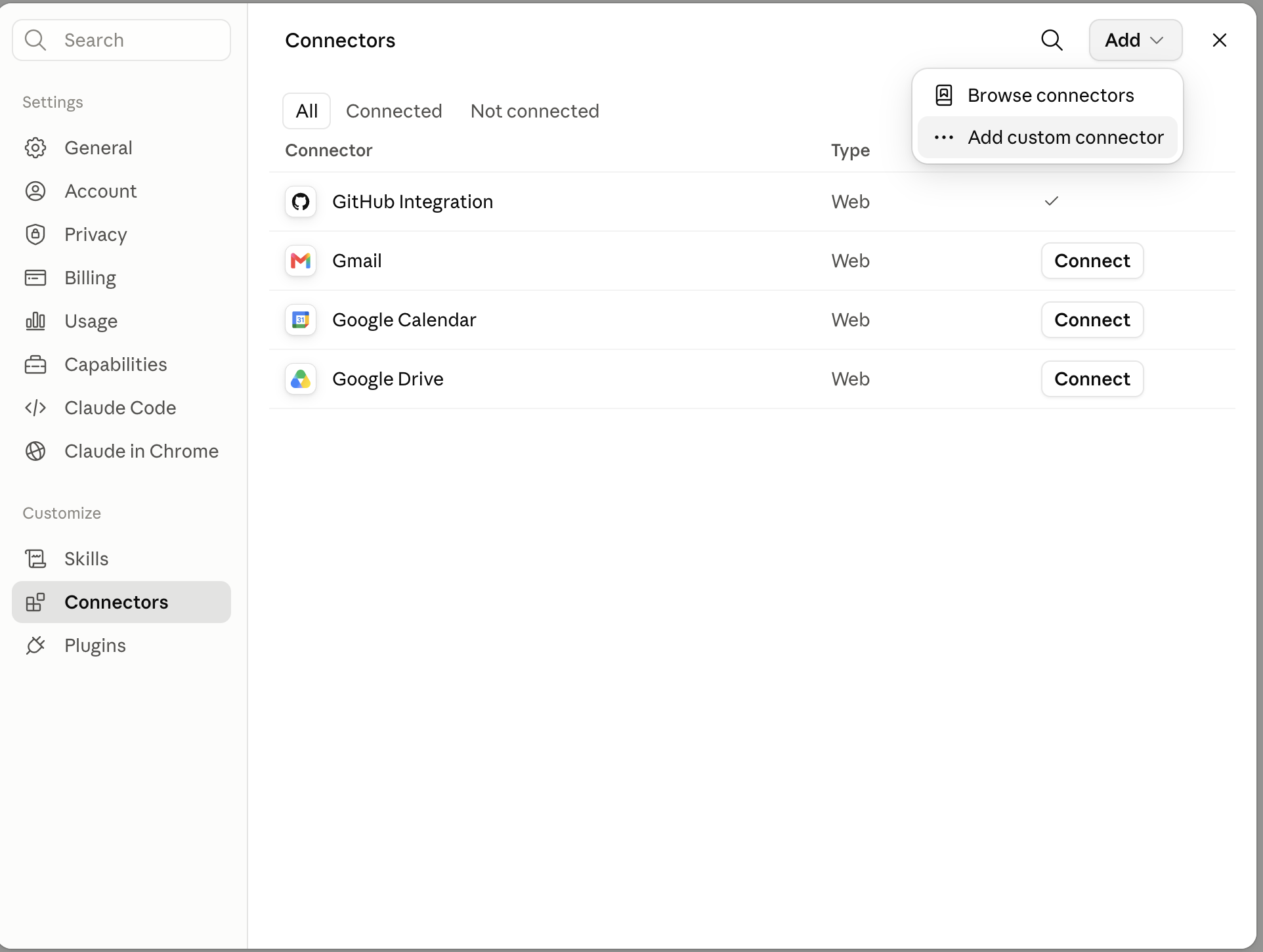
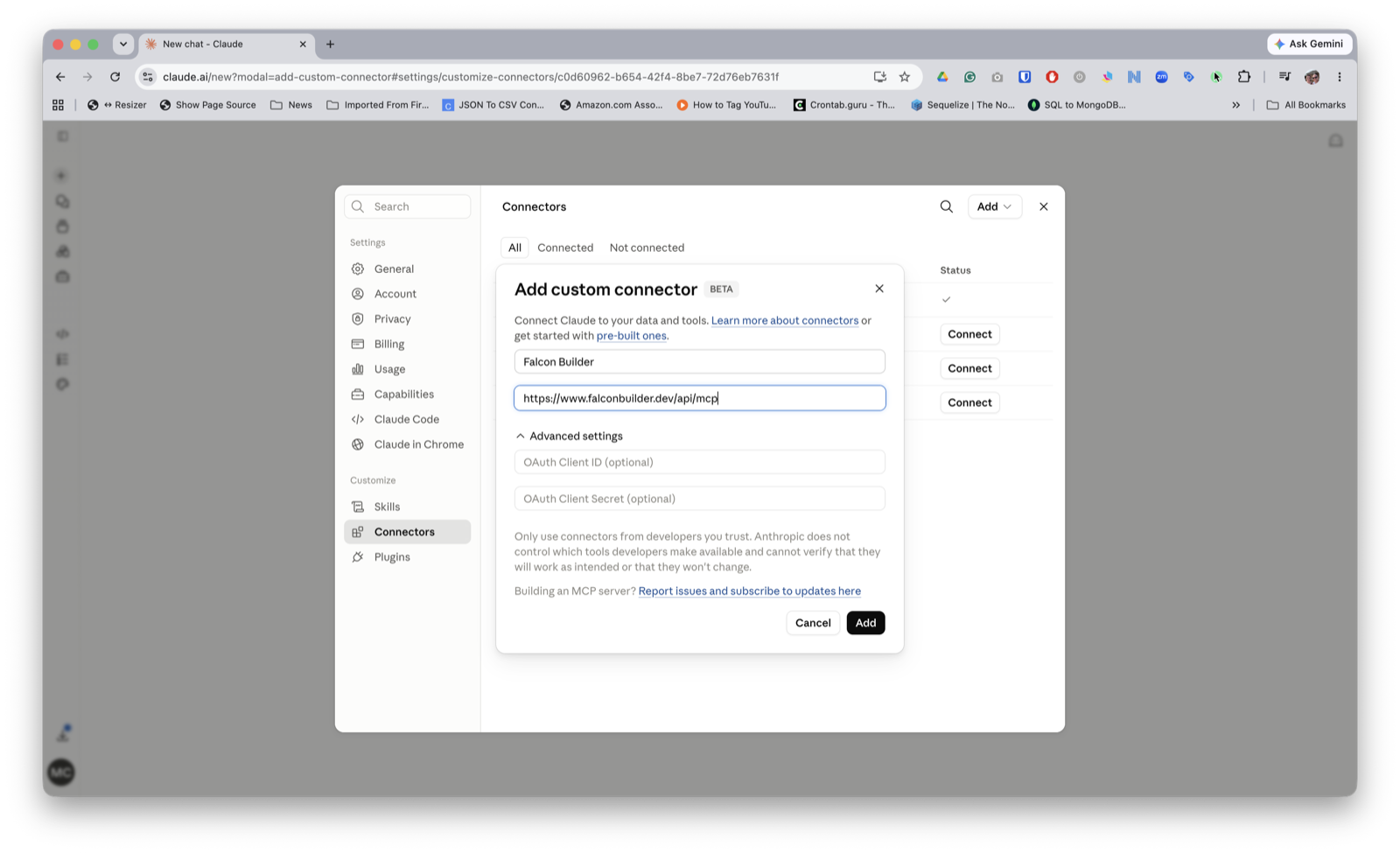
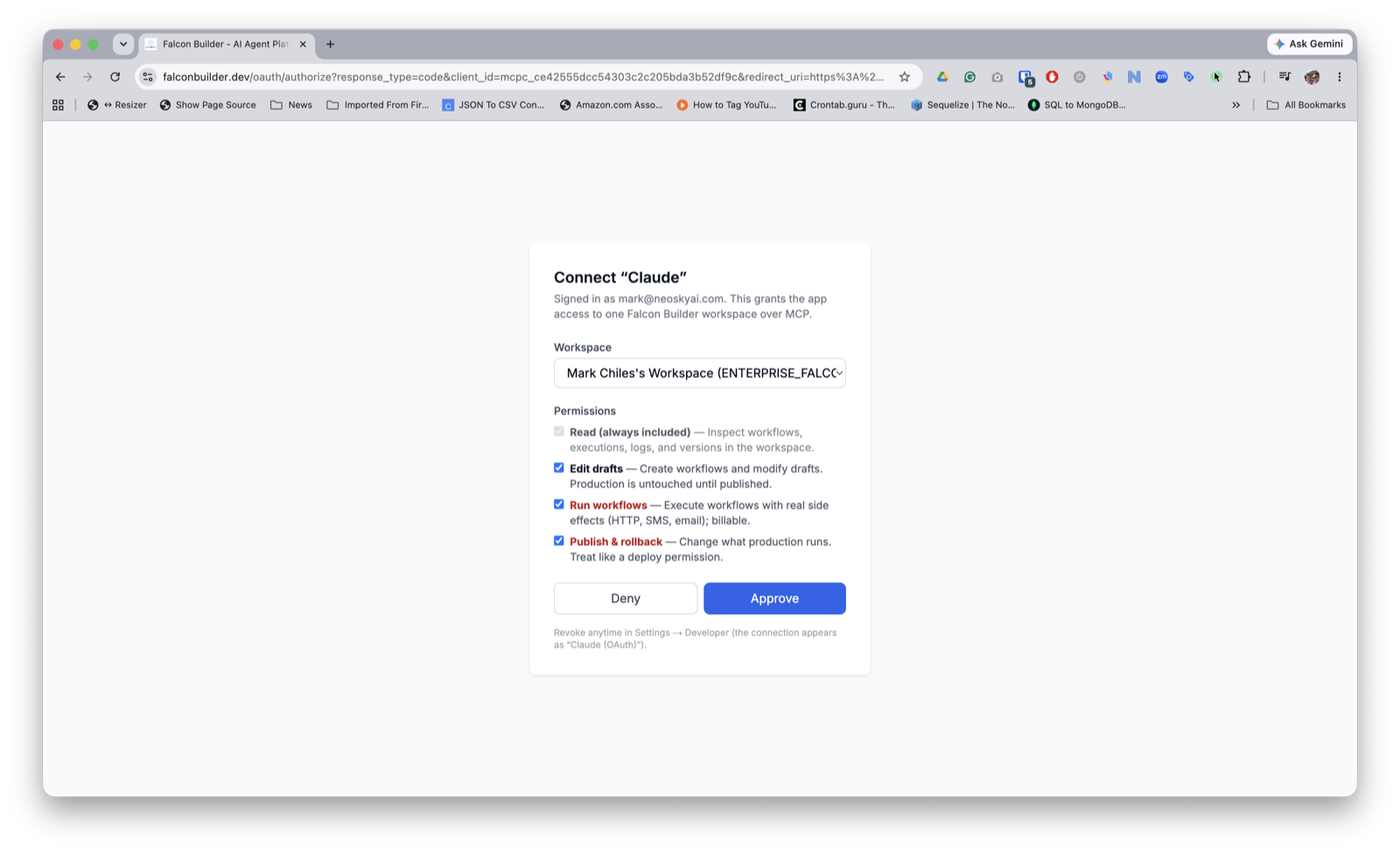
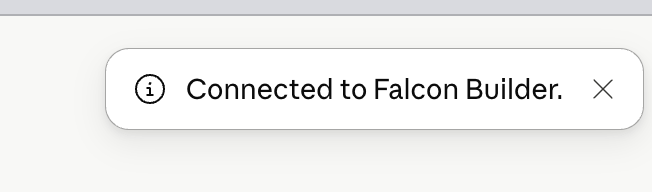
Connecting requires owner or admin rights on the workspace. Each OAuth connection appears in Settings → Developer and can be revoked there at any time. Access tokens rotate automatically every hour.
Turn it on in a chat
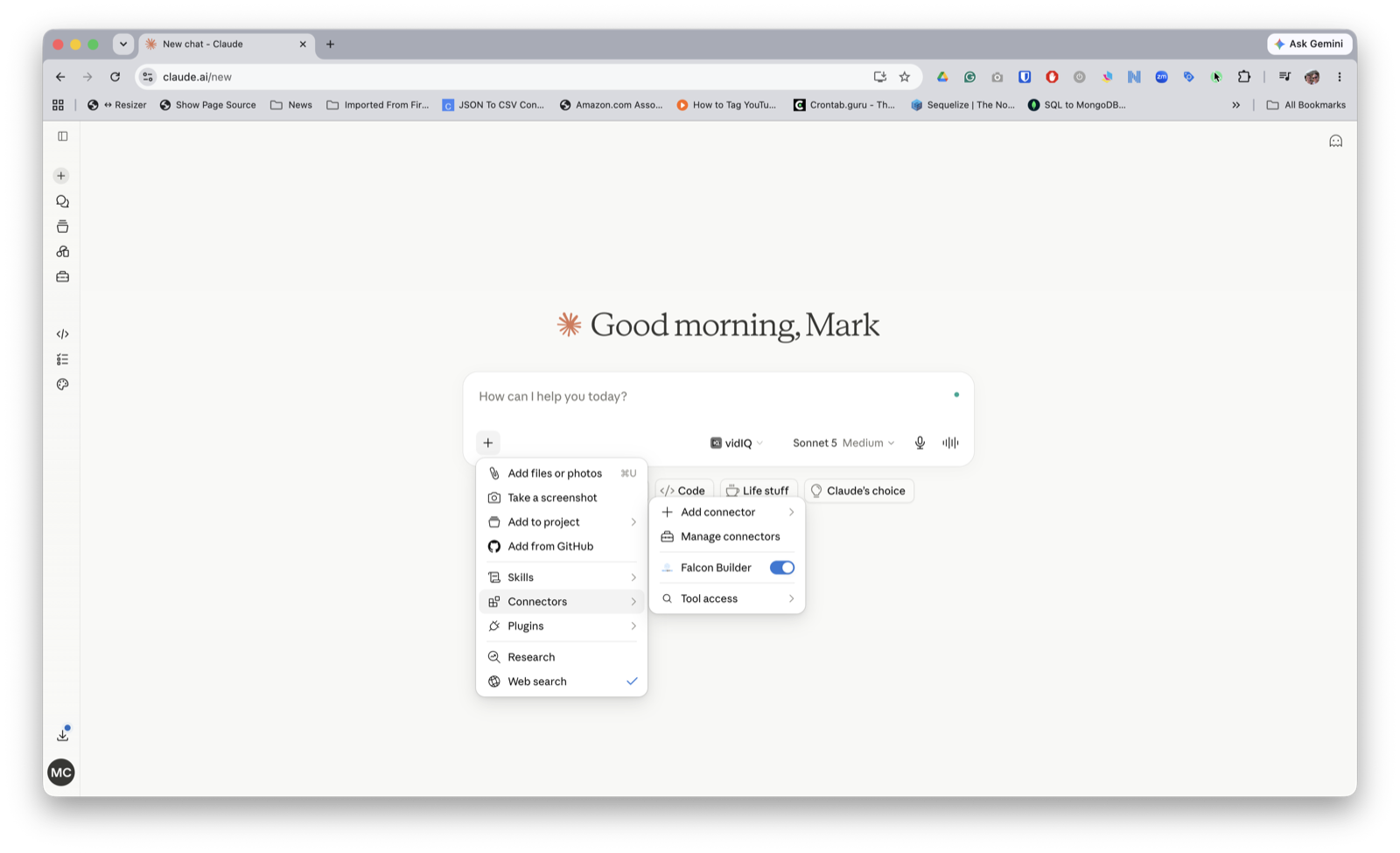
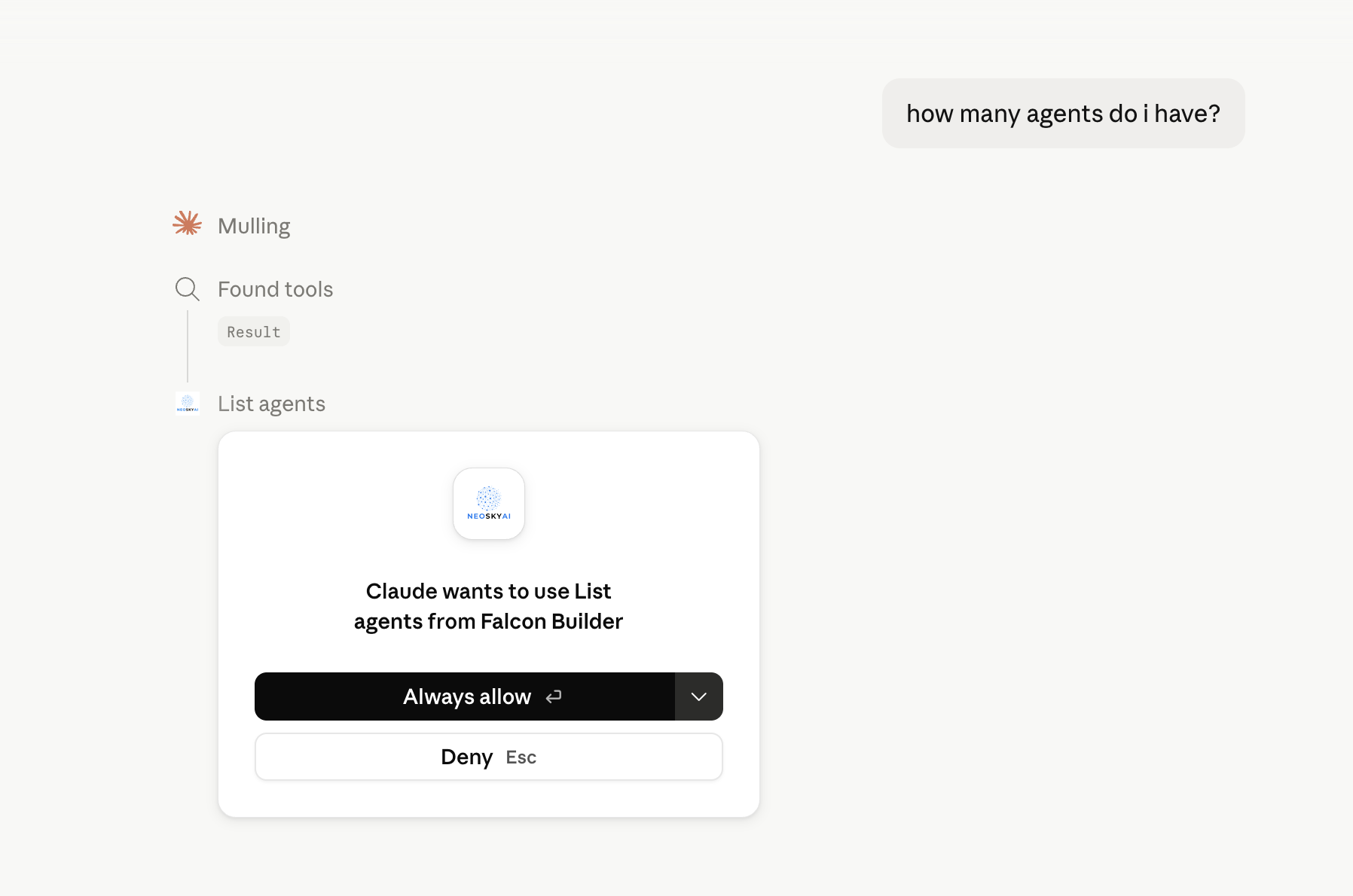
In claude.ai, open any conversation’s + menu → Connectors and toggle Falcon Builder on (other clients enable connectors from their own settings). The first time your assistant uses a tool you’ll get a permission prompt — choose Always allow for the read tools to skip future prompts.
Option B — Access tokens (Claude Code, Cursor, VS Code, Gemini CLI & other clients)
CLI and IDE clients authenticate with a workspace access token instead of OAuth:
- In Falcon Builder, open Settings → Developer.
- Name the token (e.g. “My Claude Code”), tick the permissions it should carry, and click Create token.
- Copy the token immediately — it’s shown exactly once, and only a hash is stored.
Then add the server to your client. Replace YOUR_TOKEN with the token you copied.
Claude Code
claude mcp add --transport http falcon-builder \
  https://www.falconbuilder.dev/api/mcp \
  --header "Authorization: Bearer YOUR_TOKEN"
Cursor (.cursor/mcp.json)
{
  "mcpServers": {
    "falcon-builder": {
      "url": "https://www.falconbuilder.dev/api/mcp",
      "headers": { "Authorization": "Bearer YOUR_TOKEN" }
    }
  }
}
VS Code (.vscode/mcp.json)
VS Code prompts for the token and stores it securely.
{
  "inputs": [
    {
      "type": "promptString",
      "id": "falcon-token",
      "description": "Falcon Builder API token (Settings > Developer)",
      "password": true
    }
  ],
  "servers": {
    "falcon-builder": {
      "type": "http",
      "url": "https://www.falconbuilder.dev/api/mcp",
      "headers": { "Authorization": "Bearer ${input:falcon-token}" }
    }
  }
}
Gemini CLI (~/.gemini/settings.json)
Use httpUrl; in Gemini CLI, url means the older SSE transport.
{
  "mcpServers": {
    "falcon-builder": {
      "httpUrl": "https://www.falconbuilder.dev/api/mcp",
      "headers": { "Authorization": "Bearer YOUR_TOKEN" }
    }
  }
}
Any other MCP client that supports streamable HTTP with a bearer header works the same way (exact config key names vary by client — check its MCP docs). Up to 10 active tokens per workspace.
Permissions & safety model
- Read (always included) — inspect workflows, executions, logs, version history, and interfaces. Everything is scoped to the connected workspace, and secrets (interface passwords, credentials) are never returned.
- Edit drafts — create workflows and modify drafts; create and configure end-user interfaces (access mode, passwords, email allowlists). Production workflows are never touched: live traffic runs the published version until a publish happens.
- Run workflows — execute drafts or live versions with test input. Runs fire real side effects and count against your plan’s execution limit.
- Publish & rollback — change what production runs, including taking interfaces live (or dark) for end users. Treat tokens with this permission like deploy keys.
Additional guardrails: every edit validates before it’s written (a broken patch writes nothing), concurrent editor changes always win over stale chat edits, publish/run require explicit confirmation in the request, every mutation is recorded in the audit trail in Settings → Developer, and requests are rate-limited per token. Tokens are stored as hashes — Falcon never keeps the raw value.
Every tool, by permission
You never call these directly — your assistant picks the right one from your request. This list is here so you know exactly what each permission unlocks.
Read (always included)
whoami— who’s connected, to which workspace, with which permissions.list_agents/list_workflows— browse the workspace, filter by name.get_workflow— publish state, whether the draft differs from live, structure overview, recent runs.get_workflow_definition/get_workflow_node— the full draft or live definition, or a single step’s configuration (works on workflows too large to read whole).validate_workflow— pre-flight checks with a plain-language “runnable or not” verdict.list_executions/get_execution/get_execution_logs— run history and full forensics on any execution, warnings and errors surfaced first.list_workflow_versions— published version history, with the live version marked.list_interfaces/get_interface— your hosted chat & form pages, their access settings, and (for allowlist interfaces) who’s on the list.switch_workspace— only for connections that span more than one workspace.
Edit drafts
create_workflow/edit_workflow— build new drafts or patch existing ones step by step; broken edits are rejected before anything is saved.duplicate_workflow/duplicate_agent— server-side copies of any size, into a new inactive draft or a whole new draft agent.create_interface— a new hosted chat or form page on a workflow, optionally password-protected from the start. Starts unpublished.update_interface— change access mode, set or rotate the password, adjust appearance, or restrict which sites can embed it.add_interface_access_rule/remove_interface_access_rule— manage an email allowlist: individual addresses or whole domains.delete_interface— permanently remove an interface and its stored conversations (requires explicit confirmation).
Run workflows
run_workflow— execute the draft (or live version) with test input and get an execution id to inspect.rerun_executions— replay past executions with their original input: a hand-picked set of ids, or the finished runs of a workflow, narrowed by status, date, or a field in the stored payload. Preview the batch withdry_runbefore it fires.
Publish & rollback
publish_workflow/rollback_workflow— point production at the validated draft, or restore a prior version.publish_interface— take a hosted interface live for end users, or take it back down.
FAQ
Which AI assistants work with this?
Any MCP client — MCP is an open, vendor-neutral standard. That includes Claude (claude.ai, Desktop, Claude Code), ChatGPT, Cursor, VS Code with GitHub Copilot, Gemini CLI, Windsurf, and agent frameworks that speak MCP (the OpenAI Agents SDK, Claude Agent SDK, LangChain, and others). If your client supports remote MCP servers over streamable HTTP, it works with Falcon Builder.
Which plans include MCP access?
All of them, including Free. Your plan’s existing workflow and execution limits still apply to what a connected assistant creates or runs.
Can a connection see my other workspaces?
No. Each connection is bound to exactly one workspace at consent time. Anything outside it simply doesn’t exist to the connection.
How do I disconnect?
Settings → Developer → Revoke on the token or OAuth connection. Access stops immediately.
My client doesn’t show new tools after an update.
MCP clients cache the tool list when they connect. Disconnect and reconnect the connector (or start a new Claude Code session) to refresh it.